GUI guide#
Run veemeeter (or veemeeter gui). If the daemon is not running yet, the
window starts it and shows a sleepy Mimi (Mimi is waking the audio engine up…) for a moment. Use
veemeeter gui --no-spawn if you never want the window to start the engine.
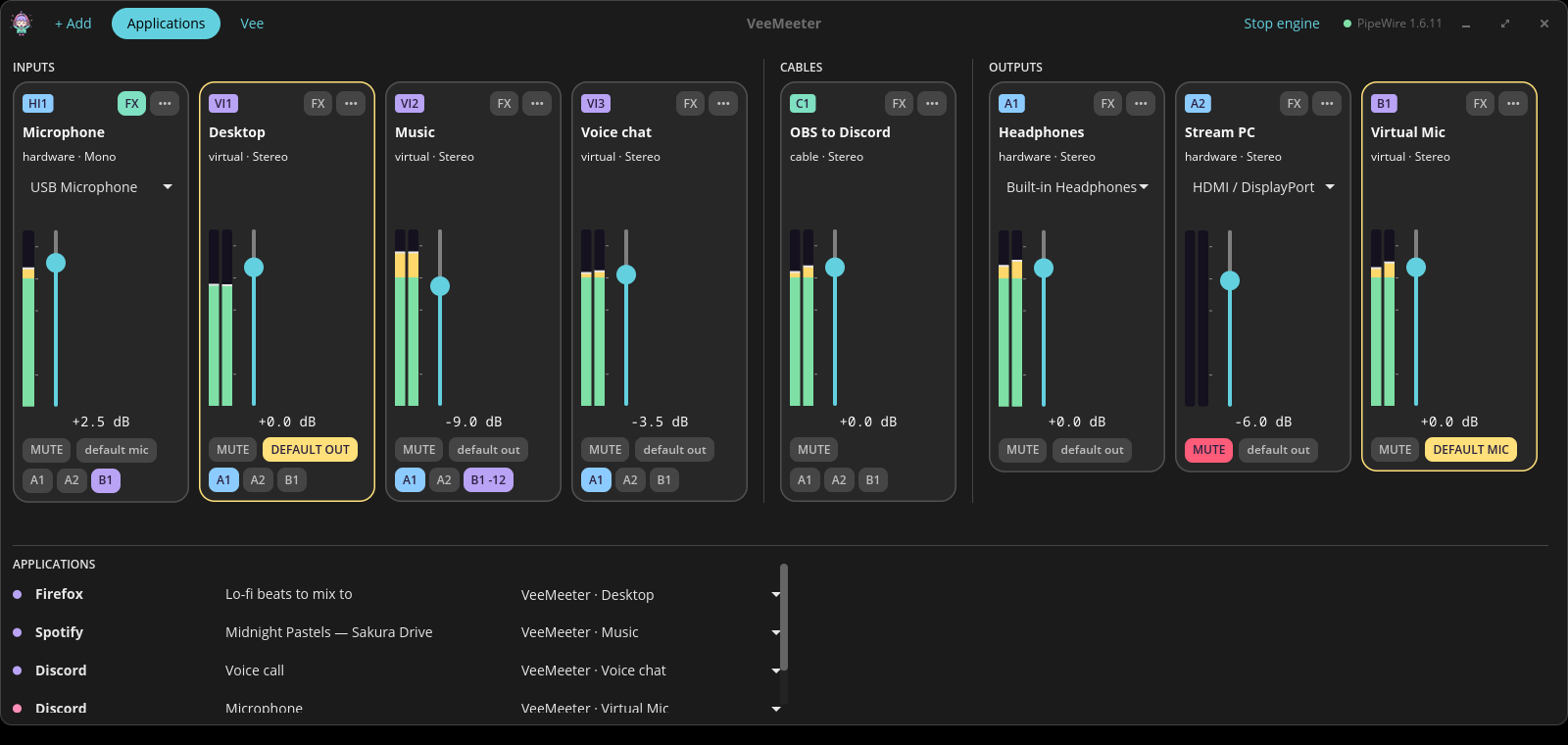
The window is still evolving
Labels and layout may move a little between releases. The behaviour described here (what each control does) is stable.
Top bar#
| Control | What it does |
|---|---|
| + Add | Adds a strip: Hardware input, Virtual input, Hardware output or Virtual output. Hardware strips pick the first device not used yet. |
| Applications | Shows the applications panel (see below). |
| Vee | Start on tray, and links to GitHub and to the issue form. |
| Stop engine | Stops the daemon. Every VeeMeeter device disappears until it is started again. |
| Status dot | Green with the PipeWire version when connected; otherwise the connection status. |
A strip#
The mixer has an INPUTS row and an OUTPUTS row. Every strip card has:
- Fader
- Volume in dB, from −60 (off) to +12. Drag it or scroll over it (1 dB per notch); Reset volume (0 dB) in the ••• menu goes back to 0 dB. Equalizer bands and send levels scroll too.
- VU meter
- Peak level per channel.
- MUTE
- Silences the strip; the fader position is kept.
- A1 / A2 / B1 … (inputs only)
- One button per output. Lit = this input is sent to that output. Hover a button to see the output's name.
- Right-click an A/B button
- Sets the send level of that route only (−∞ … +12 dB), e.g. music
quieter in your virtual mic than in your headphones. The button then
shows the level (
B1 -12). - default (every strip but cables)
- Makes the strip the system default: an input virtual strip or a hardware output becomes the default output, a virtual output or a hardware input (your mic, with its fader and effects) becomes the default microphone. The default strip shows DEFAULT. See the default device.
- Device picker (hardware strips only)
- Chooses the real device. An unplugged device shows (unplugged); the strip reconnects by itself when it comes back.
- ••• menu
- Rename, channel layout (Mono, Stereo, Quad, 5.1, 7.1, or Match device), move the strip left/right, Reset volume (0 dB), Remove.
Cables#
Cables (+ Add → Virtual cable) get their own CABLES column between inputs and outputs. See Virtual cables.
Effects (FX)#
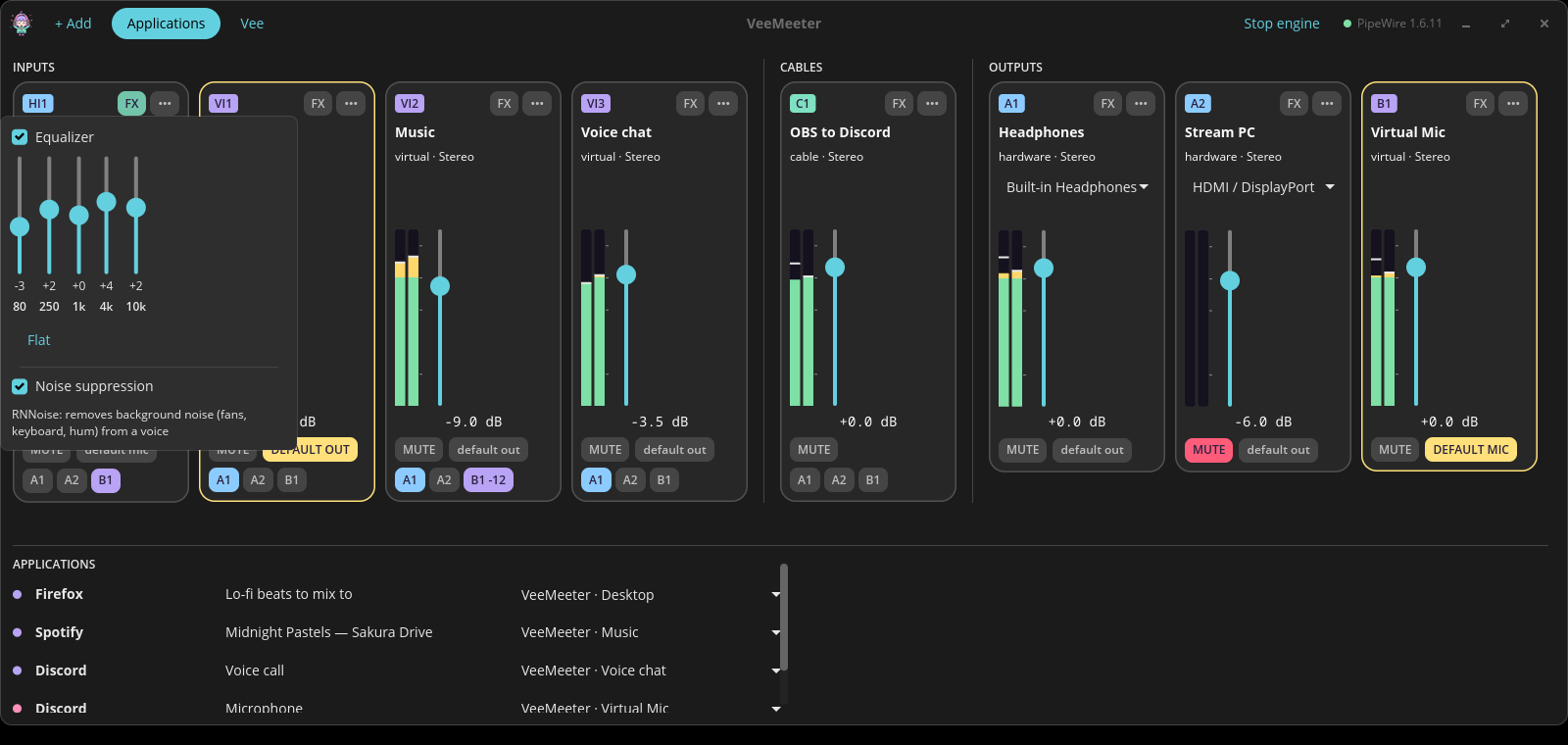
The FX button of a strip lights up (mint) when an effect is on. It opens:
- Equalizer — five bands (80 Hz, 250 Hz, 1 kHz, 4 kHz, 10 kHz), −12 … +12 dB. Changes are heard live; double-click a band for 0 dB, Flat resets them all.
- Noise suppression — RNNoise removes fans, keyboard clicks and hum from a voice. Greyed out until the RNNoise LADSPA plugin is installed (the Nix package ships it).
Turning an effect on or off reloads the effect chain of that strip (a very short gap); moving a band never does.
Applications panel#
Lists every stream that is playing (▶) or recording (●), with the strip or device it currently uses. Pick another target in its drop-down to move it: playing apps can go to any virtual input, recording apps to any virtual output, or both straight to a real device.
Empty panel?
No application is playing or recording right now: start some audio and it shows up instantly, no refresh needed.
Desktop integration#
- The starred virtual input follows your volume keys and pavucontrol, and the other way round: moving the fader updates the desktop volume.
- Hardware inputs are wrapped in a hidden internal node, so VeeMeeter's microphone fader never changes your system microphone volume.
- Closing the window keeps the routing alive: the daemon does the audio.
System tray#
Mimi also lives in the system tray, and she dances to what comes out of your outputs: she hops on the beats, higher when it's loud, little equalizer bars pop up next to her, she cheers when it gets loud and dozes off after 30 seconds of silence (or when the engine is stopped).
| Action | What it does |
|---|---|
| Click on Mimi / Open Vee | Opens the mixer window, or brings it back. |
| Start on tray | Mimi shows up in the tray when you log in, and when you launch VeeMeeter (launch it again to open the window). |
| Open GitHub | The project page. |
| Report an issue | The GitHub issue form. |
| Close Vee | Closes the window and the tray. The routing keeps going (use Stop engine for that). |
The tray is its own process (veemeeter tray), started with the window and
kept when you close it. Launching veemeeter while a window is open just
brings that window back. veemeeter gui --no-tray opens a window without the
tray.
Desktops without a tray
The icon uses the StatusNotifierItem protocol (KDE, COSMIC, Xfce, waybar…). On GNOME it needs the AppIndicator and KStatusNotifierItem Support extension. Without a tray, Start on tray falls back to the window.
The option is stored in $XDG_CONFIG_HOME/veemeeter/gui.toml
(start_on_tray = true). Turning it on also adds
$XDG_CONFIG_HOME/autostart/veemeeter.desktop, which runs
veemeeter tray --wait at login (--wait: the panel may start after the
apps); turning it off removes it. An entry you wrote yourself at that path
is never changed.